AI Photo Editor - Lumii
- 4.8
- Rating
- 100.00M
- Installs
- Free
- Price

 Analysis by App-foxy
I usually judge a photo editor by what happens after the first tap: can I get from an ordinary picture to a result I actually want without fighting the interface? AI Photo Editor - Lumii makes a strong first impression because it brings automatic enhancement, background removal, retouching, filters, and effects into one photography app. It is free to start, aimed at everyone, and developed by InShot Video Editor. After spending time with it, I see it as a practical choice for quick social posts and everyday image cleanup rather than a full replacement for a desktop editor.
The app has enough depth to reward experimentation, but that depth also creates the main friction. There are many possible adjustments, and a new user can easily apply too much processing before understanding what changed. My best results came from treating the automatic tools as a starting point, then making small corrections instead of stacking every effect that looked attractive in the preview.
Getting past the first points of friction
The first place users can get stuck is choosing the right starting action. Lumii is not just a filter picker. Its tools cover several different jobs, so the best route depends on the image. A portrait, a product shot, and a dark landscape should not be approached in the same way. If I want a quick improvement, I begin with the enhancement controls. If the subject is surrounded by clutter, I look at background removal before spending time on color. If the picture is already well exposed, I avoid automatic correction and go directly to a restrained filter or manual adjustment.
You May Also Like

 Pandora - Music & Podcasts
Pandora’s Music Is Easy to Start, but Harder to Recover
Pandora’s strength is its low-effort path from a seed to a station. Its weak spot is how much confidence it asks you to place in connection, setup, and quiet recovery.

 8 Ball Pool
 Is Built on Rivalries, Rematches, and Routine
A close look at the rivalries, rematches, shared routines, and unanswered safety questions that turn a quick pool match into a persistent mobile community.

 Samsung Music
’s Quiet Strength Is Playing What You Already Own
Its reach comes less from spectacle than from dependable access to a personal library. That simplicity is both the app’s strongest retention engine and its ceiling.

 AccuWeather: Weather Radar
AccuWeather Review: A Quick, Clear Forecast for Everyday Decisions
For everyday plans, the best forecast is the one you can understand quickly. AccuWeather makes rain timing, radar, and local conditions easy to act on, with a few trade-offs.

 Hill Climb Racing
Why Hill Climb Racing Still Turns Crashes Into One More Run
A tiny car, a bumpy hill and one more upgrade: Hill Climb Racing keeps resurfacing because its simple chaos makes every near-miss feel personal.

 AliExpress - Shopping App
AliExpress Makes Global Shopping Feel Personal, but Shoppers Bear the Risk
AliExpress turns a global marketplace into a pocket-sized discovery engine. Its reach is useful, its shopping loop compelling, and its trade-offs easy to miss.
More From Our News Desk
View All News


This sounds simple, but it matters because editing in the wrong order can make later corrections harder to judge. A strong filter may hide whether the original exposure was fixed properly. Likewise, retouching a face before deciding on the final crop can waste time around areas that will eventually be removed. My preferred sequence is to open the photo, check its framing, correct obvious brightness or color problems, handle the background or unwanted distractions, and only then consider decorative effects.
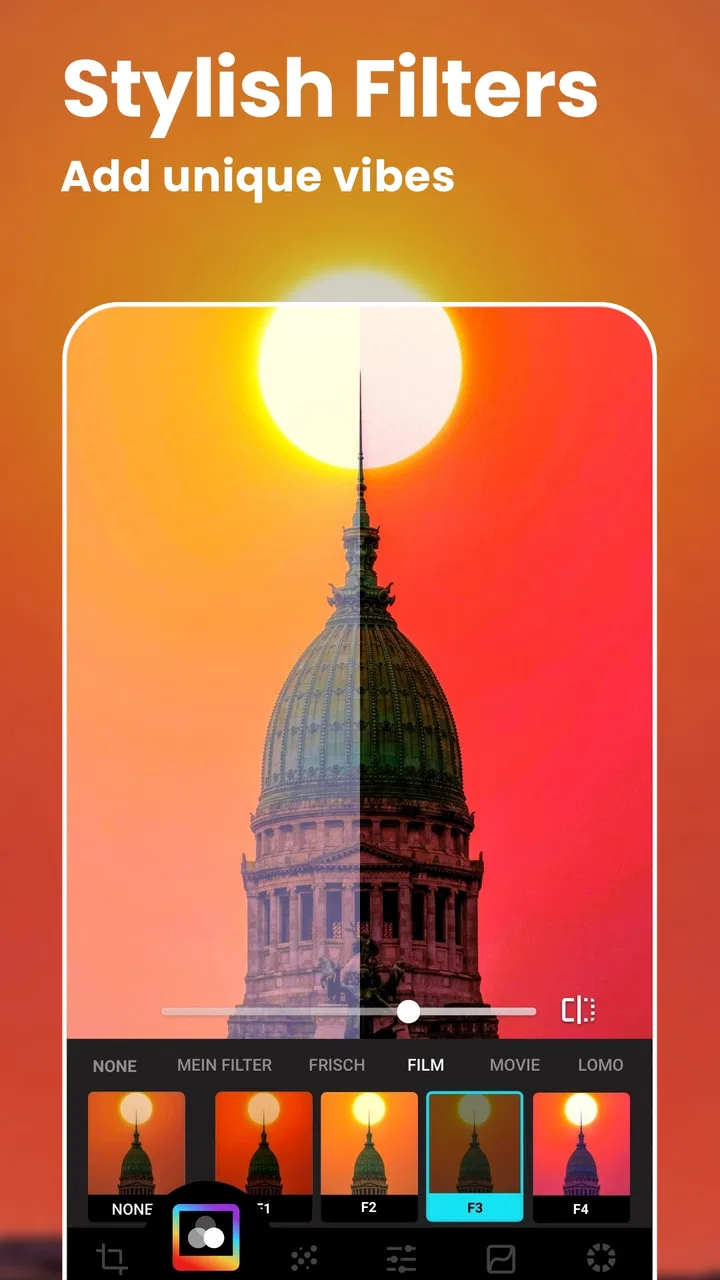
The large selection of filters and effects is useful when I need a visible style quickly, especially for a casual post or a themed image. The trade-off is that a dramatic preset can make several photos from the same event look less consistent. For a small album, I would choose one subtle look and apply it across the set rather than selecting a different effect for every picture. That keeps skin tones and lighting closer together and makes the final collection feel more deliberate.
Background removal is another area where expectations need to stay realistic. It is most helpful when the main subject has a clear outline and a noticeable difference from what surrounds it. Hair, transparent objects, thin straps, plants, and busy edges are more difficult for any automatic tool. When the cutout looks rough, I do not immediately assume the application has failed. I first try a cleaner source image or a simpler background, then inspect the edges at a closer view before placing the subject on a new background.
Retouching also benefits from a light touch. I use it for a small distraction, a temporary mark, or an uneven detail that draws attention away from the subject. Pushing the effect too far can remove natural texture and leave the face looking flat. A useful habit is to compare the edited image with the original before saving. If I notice the retouching before I notice the person, I reduce it.
Checks worth making before editing
Before blaming the editor for a failed result, I check the basics. The source image should open correctly in the phone’s normal gallery, and I make sure I am working on the intended copy rather than a compressed screenshot or a preview downloaded from a messaging service. A low-quality source gives enhancement and retouching less information to work with, so no filter can restore detail that was already lost.
I also check that the application is current. The version available for this review is 2.016.194, and keeping the installed version aligned with the current store release is a sensible first step when a tool behaves differently from expected. On Android, the app requires version 7.0 or later. That requirement is modest, but an older phone may still struggle with heavier image processing because of storage pressure, memory limits, or general system slowdown.
Storage is an easy detail to overlook. Editing often involves opening an original, creating a working copy, and saving an exported result. If the phone is nearly full, saving can fail or appear to stop even though the edit itself worked. I leave room before starting a batch of images and avoid switching rapidly between several demanding applications while an export is in progress.
When an image seems missing, I check the folder and the gallery app rather than assuming it was deleted. Some phones take a moment to index a newly saved picture, and gallery applications do not always display every folder in the same way. Closing and reopening the gallery, or checking the device’s image folders, can distinguish a display delay from a failed save.
It is also worth checking the image format and source location. A picture that is still stored in a cloud service, inside a private messaging thread, or behind a separate file provider may not behave like a normal local photo. I first save a local copy, then open that copy in Lumii. This small step removes one layer of uncertainty and makes it easier to tell whether the problem comes from the editor or from access to the original file.
The application is free to download and use, while in-app purchases range from $2.99 to $29.99 per item. I would explore the free workflow first rather than assuming every visible tool is included. If a feature or effect asks for a purchase, I decide based on a real recurring need, not on the excitement of seeing it in a preview. Someone who only edits occasional family pictures may find the free experience sufficient, while a frequent creator should examine whether the paid options fit their routine before committing.
Recovering a workflow when something goes wrong
When an edit produces an unexpected result, my first recovery step is to return to the original photo and reproduce the process more slowly. This is more useful than repeatedly adjusting the already-processed version. I make one change at a time and check the preview after each major step. That reveals whether the issue came from enhancement, color, retouching, a filter, or the export stage.
If the preview looks correct but the saved image does not, I separate the two stages. I save a simple version with minimal effects, confirm that it appears in the gallery, and then build up the edit again. This helps identify whether the problem is connected to a particular effect or to the final output process. It also protects the original from being overwritten by a rushed attempt.
For background work, I recover by simplifying the composition. I test the cutout against a plain, contrasting background because edge problems are easier to see there than over a detailed scene. If the outline is acceptable on a simple background but looks wrong in the final design, the issue may be visual contrast rather than the cutout itself. A dark subject on a dark replacement background, for example, can make a good edge appear weak.
For portraits, I use a before-and-after comparison at normal viewing size, not only while zoomed in. Close inspection can make tiny imperfections feel enormous, while a distant view can hide unnatural smoothing. The right balance is the one that still looks like the same person when viewed casually. This is one reason I prefer several small corrections over one aggressive retouching pass.
Filters are easiest to recover from by removing them completely and rebuilding the look. Reducing the intensity of a heavy preset can work, but starting from the unfiltered image often gives me better control over skin color and shadows. I then add a single effect and reassess the whole picture. This approach is slower for a moment but usually faster than trying to undo a chain of overlapping choices.
If the application closes or becomes unresponsive, I use general, low-risk steps: close other applications, restart the phone, check available storage, and reopen the project from the original image. I avoid repeatedly tapping save while the interface is busy. If the same image causes trouble while other images work normally, I test a duplicate or a smaller local copy. That can reveal whether the source file itself is unusual or damaged.
When the editor is not the real cause
Many apparent editing problems begin before Lumii opens. A photo can look soft because it was captured out of focus, sent through a service that compressed it, or enlarged beyond the detail it originally contained. The enhancer may improve contrast and clarity, but it cannot recreate the fine texture of a high-quality original. I get better results from the camera file than from an image copied through several apps.
Color differences can also come from the phone display. A picture that looks warm or saturated on one screen may look ordinary on another. Before making a strong correction, I check the image in the phone’s regular gallery and, when possible, on another screen. Otherwise I may compensate for the display rather than for the photograph and end up with an exaggerated export.
Sharing services create another layer of confusion. If the saved image looks fine in the gallery but changes after uploading, the platform may be resizing or recompressing it. I compare the local file with the shared version before editing again. Repeating the same correction will not solve a change introduced later in the sharing process.
Performance can depend on the phone as much as on the application. A newer device with plenty of free space may handle complex edits comfortably, while an older device can take longer to preview or save. That does not automatically mean the tool is unsuitable, but it changes how I use it: I edit one image at a time, keep other demanding apps closed, and save finished work before moving to another picture.
The app’s broad audience is reflected in its Everyone age rating, and its scale is clear from an average rating of 4.8 based on around 992 thousand ratings, alongside over 50 million installs. Those figures suggest that the straightforward editing idea works for a large number of people, but popularity should not be mistaken for a guarantee that every advanced result will be perfect. The more specialized the task, the more important it becomes to inspect the edges, preserve the original, and judge the output at normal size.
Who will enjoy it, and who should choose something else
I would recommend Lumii to someone who wants a capable phone-based editor without learning a complicated desktop workflow. It is particularly useful for quick portrait cleanup, preparing a picture for a social post, removing a distracting background, or giving a group of ordinary photos a consistent mood. The combination of automatic tools and manual control means I can move quickly when the image is simple and slow down when the details matter.
It is also a good fit for small online sellers and casual creators who need a clean subject image without opening a separate design program. A practical workflow is to photograph the item against the clearest background available, remove the background if the outline is distinct, inspect the edges, and then use restrained color correction. The important insight is that background removal works best as part of a controlled photo setup; it is not a substitute for clear lighting and separation.
I would be more cautious about using it as the only tool for professional retouching, complex composites, or precise color-managed work. Desktop editors usually offer finer selections, more dependable layer control, and deeper adjustment options. A dedicated background-removal service may be preferable when clean hair or intricate edges are central to the job. A minimalist filter app may also be better for someone who wants one-tap consistency and finds a large toolset distracting.
Another limitation is creative discipline. Having many filters and effects can encourage editing for its own sake. I have had better outcomes when I decide what the image needs before opening the effect panel. If the goal is to make a face clearer, I do not need a decorative overlay. If the goal is to preserve a natural travel scene, an intense color treatment may work against the memory I am trying to keep.
The developer, InShot Video Editor, gives the product a recognizable place among mobile creative tools, but the experience still depends on the individual phone and image. I would not choose it solely because it is popular, nor reject it because it includes optional purchases. I would install it, test the exact workflow I need, and judge whether the free tools already solve the problem. For occasional editing, that trial is more informative than comparing feature lists.
My practical verdict after using it
In everyday use, AI Photo Editor - Lumii succeeds because it shortens the distance between a basic phone photo and a presentable result. I can start with automatic enhancement, correct the parts that look overdone, and finish with a filter or effect without moving between several separate applications. That convenience is its strongest quality.
Its weak point is not a lack of ambition but the need for restraint. Background edges require inspection, retouching needs a light hand, and filters can overwhelm an otherwise good image. Setup checks also matter: use a local, reasonably clear original, leave storage available, keep the application updated, and give the phone enough breathing room during heavier processing.
For a realistic daily example, imagine taking a quick portrait outside a café before meeting a friend. I would crop first, lift a dark face gently, remove one distracting object only if the result stays natural, and apply a subtle look rather than a dramatic preset. I would compare the result with the original, save a copy, and only then share it. That workflow uses the app’s strengths while avoiding the most common over-editing mistakes.
Overall, I see Lumii as a flexible photography app for people who want more than a basic filter but less complexity than a full professional editor. It is free to begin, supports Android devices running version 7.0 or later, and offers enough range for portraits, social images, simple product shots, and quick creative experiments. I would recommend it to practical mobile editors who are willing to check their results carefully. I would steer demanding professionals toward a more precise alternative, but for fast, controlled improvements on a phone, AI Photo Editor - Lumii is a useful tool to keep installed.
FAQs for AI Photo Editor - Lumii
01What features does AI Photo Editor - Lumii offer?
AI Photo Editor - Lumii provides a wide range of features including AI-enhanced photo editing, filters, effects, and adjustment tools for brightness, contrast, and saturation. It also offers advanced features like background removal, double exposure, and blending modes to enhance your creativity. Users can enjoy a user-friendly interface that makes editing seamless.
02Is AI Photo Editor - Lumii free to use?
AI Photo Editor - Lumii offers a free version with basic editing tools and features. However, for access to premium features such as exclusive filters, advanced editing tools, and ad-free experience, a subscription or one-time purchase is required. Users can try the premium features with a free trial before committing.
03How does Lumii's AI technology improve photo editing?
Lumii utilizes advanced AI technology to automatically enhance photos by adjusting lighting, colors, and details. The AI can intelligently identify and edit specific elements in a photo, such as sky enhancement or portrait retouching, making the editing process faster and more efficient for users of all skill levels.
04Is Lumii suitable for professional photo editing?
While Lumii is user-friendly for beginners, it also offers robust tools that can cater to professional needs. Features like precise color grading, custom filters, and layer adjustments make it a viable option for professional photo editors looking for a mobile solution. However, it may not replace desktop software for highly complex projects.
05What devices are compatible with AI Photo Editor - Lumii?
AI Photo Editor - Lumii is compatible with both Android and iOS devices. It requires Android version 5.0 or higher and iOS version 10.0 or later. The app is optimized for use on smartphones and tablets, ensuring a smooth editing experience across different screen sizes and resolutions.
Pros
- Intuitive interface for easy editing.
- Wide range of filters and effects.
- Supports high-resolution image exports.
- Regular updates with new features.
- No intrusive ads in premium version.
Cons
- Free version has limited features.
- Requires internet for some functions.
- Occasional lag on older devices.
- Some filters are paywalled.
- Learning curve for advanced tools.

AI Photo Editor - Lumii
Gallery